Excel names as code
The last post rebuilt the model of Episode 3 in Excel, with dynamic arrays and LAMBDA. An AI assistant wrote that workbook, through a Python script. This post edits it, as text, in VS Code, with xln, a free extension. Part I shows what the editor makes of a workbook: the formulas of a sheet as one list, a function written from a formula, a build back into the file, a rename, and a damaged save found without opening Excel. Part II hands the same text to an AI assistant. The measurements are collected in section 16; technical terms in the glossary. The video shows each step on the workbook.
Part I. The code view of an Excel model
1. The workbook, and the tool
The workbook is the one the last post offers for download: Episode 3’s leveraged-buyout model, one sheet per Impromptu dataset, one named row per line item, and the functions written with LAMBDA. A Python script, written by an AI assistant, generated it from a text description of the model. The copy used here is the one I formatted by hand in Excel after that build.
The last post noted that Excel’s Name Manager has no search and edits a definition in a one-line box, and that the VS Code extension users had asked for did not exist. One is now published: xln, version 0.1.3. It reads an .xlsx file directly and writes its defined names, its LAMBDA functions and its cell formulas as text files in a folder next to the workbook, the pull. A build writes edits back into the file. It needs no add-in and no macros, and Excel does not need to be running while you edit. It is MIT-licensed, on the VS Code Marketplace and on Open VSX (section 15).
2. A sheet as one list of formulas
In Impromptu the income statement IS is one object, and its formulas are one list written over the names of its line items. xln gives the Excel sheet the same shape. The file names/sheets/IS.xln holds the sheet’s named cells and their formulas, in the order of the sheet:
GrossProfit_base @C9# = Sales_base + RawMaterials_base + DirectLaborCosts_base;The line reads as Impromptu’s does: gross profit is sales plus raw materials plus direct labour. The address after @ belongs to Excel and cannot be edited here. The # says that the name covers the whole spill, the five years from C9 across, and not the single cell.
One difference stays. The file holds the list three times, once per scenario, with the suffixes _base, _payout and _deleverage. Impromptu holds it once and gives the scenario its own dimension. The copies come from Excel, as the last post explained, and the text view does not remove them.
3. Who owns what
Excel and xln divide the workbook between them. Excel owns the sheets, rows and columns, the labels and other text, the values, the formats and the charts, and decides which cells exist. xln owns the defined names, the formulas of the cells that exist, the LAMBDA functions with their documentation, and the checks. A row or a label is never added in xln: it is added in Excel, saved, and pulled.
A pull of this workbook writes one file for each sheet that has formulas or names of its own, 11 of them, in sheet order, and one file per module, a family of functions with a common prefix: FN.xln for the workbook’s functions and IN.xln for its input lookups. The rule that keeps the two sides apart is to edit on one side at a time. After saving in Excel, pull. If a formula has been changed differently in Excel and in xln since the last pull, the build writes nothing and shows both versions.
4. The formula view
The formula view is a read-only page per sheet. Each row gives a formula, its address, the size of its spill and the value Excel saved. The rows can be listed in order of appearance on the sheet or in calculation order, where each formula comes after the ones it reads. A workbook formula view lists every formula of the workbook in calculation order, across sheets.
This is the reading Impromptu’s formula panel gives without asking. Excel’s own tools show one cell at a time: the formula bar, or the Name Manager’s one-line box.
5. The editor reads the workbook
Hovering over a name shows its kind, its scope, its formula and its comment, and for a spill its cell, its size and its first value, and the formulas that use it. Go to Definition jumps from a call of FN.SEEDROW to its definition in FN.xln. Find All References lists every use of a name, in the .xln files and in the workbook’s own cells, conditional formats and data validations.
On a Mac, the function keys F2 and F12 often do not reach VS Code. Every one of these actions is also on the right-click menu, and Go to Definition is ⌘+click.
6. A function from a formula
On the SCF sheet one row holds last year’s discretionary cash, with zero in the first year. It is written the way a cell modeller writes it, with native functions only:
DiscretionaryPrev_base @C13# = HSTACK(0, DROP(DiscretionaryCash_base, 0, -1));DROP removes the last year, and HSTACK puts a zero in front. The same row appears in the two other scenarios, at C48 and C83. I wrote these three rows in natives for this demonstration; the build had written them with two of the workbook’s functions nested, and the same idea occurs 15 more times on the SCF recursive sheet in that form:
FN.SEEDROW(0, FN.PREV(DiscretionaryCash_base))FN.PREV shifts the row one year to the right and fills the first year with #N/A, produced by DROP(EXPAND(0, 1, 2), 0, 1). FN.SEEDROW then replaces the first year with the seed. One idea takes two calls.
The idea gets a name in FN.xln, typed by hand. The doc comment above it becomes the name’s comment in Excel’s Name Manager:
/** previous period value of a row, with a seed in the first period */
FN.LAG = LAMBDA(seed, row, HSTACK(seed, DROP(row, 0, -1)));
The seed comes first, as in FN.SEEDROW(seed, rest) and the other functions of the workbook. While I typed it, the editor completed HSTACK and DROP. Back in SCF.xln, the three rows become
DiscretionaryPrev_base @C13# = FN.LAG(0, DiscretionaryCash_base);and the same with _payout and _deleverage. As the bracket after FN.LAG is typed, signature help shows the two parameters, seed and row. The Problems panel lists nothing, so the build will accept it. A call with the wrong number of arguments would have been an error there, before anything reached the workbook.
In the Impromptu model the same row is
Discretionary prev[year:rest] = Discretionary cash[year:prev]The Excel row now also reads another row’s previous year in one call. The match is close for this case and has three limits:
FN.LAGshifts columns.[year:prev]names the dimension it moves along.- The seed is an argument. Impromptu gives the first year its own clause,
[year:first], when it needs one; here it needs none, and an empty first year reads as zero. - A row that reads its own previous value cannot use
FN.LAG: the call would be a circular reference. The net cash position is such a row. Impromptu writesNet cash position[year:rest] = Net cash position[year:prev] + NCF, with the same:prev. The workbook writesFN.SEEDREC(IN.ASMPT_base("initial total cash"), NCF_base, LAMBDA(prev, d, prev + d)), a function that walks the years one at a time, as the last post describes.
7. Build and reopen
Build and reopen writes the workbook and opens it in Excel. The build writes only the names and cells that changed: here, one new name, FN.LAG, and the formulas of three cells. Every other part of the file, formats, column widths, Tables, is copied byte for byte. The previous file is kept as lbo.backup.xlsx. After writing, xln reads the file back and compares each name and cell with the source, and puts the original back on a mismatch. While Excel has the workbook open, a desktop build stops, or offers to close it in Excel first.
In Excel, SCF!C13 reads =FN.LAG(0,DiscretionaryCash_base). The Name Manager lists FN.LAG with the comment, ending in a tag [xln FN …] that records which module wrote it. The Check sheet, which compares every line item with Impromptu, still reads PASS (section 16).
8. A rename, and the copies
Rename Symbol on GrossProfit_base, with the new name GrossMargin_base, changes the name’s line, adds a line @renamed(GrossProfit_base) above it so that the build knows it is a rename and not a deletion, and changes every formula of the project that reads it. Here that is one name and one cell formula. The build renames the name in the workbook and in every formula there that uses it.
After the build, the check has two warnings. IS!EBITDA_base now reads GrossMargin_base, while its _payout and _deleverage copies still read GrossProfit_…, so the three no longer differ only by their suffix. The second warning is the same finding on the Check sheet. This is copy drift, check C11. It is a check on the workbook, so it appears once the rename is built, not while the source is edited. In Impromptu a line item has one name and is renamed once. Here it has three. The check compares the three copies; Rename Symbol changes only the name it is given. Renaming the other two copies and building again leaves no C11 warning, and Check reads PASS.
xln never writes labels: they are cell values, and Excel owns them. Column B of IS shows each row’s name as text, and IS!B9 still reads GrossProfit_base. The build therefore prints a label notice: the cells that still show the old name (IS!B9) and the Find & Replace that fixes them in Excel, with Match entire cell contents. It also warns that Replace All would change IS!B70 as well, a cell with the same text below the three scenario blocks, where static text cells list each Impromptu formula beside its Excel name, so B9 is fixed with Find Next and Replace. Until the label is fixed, check C15 flags it.
9. The library
A library is a folder of .lambda files, one function each, shared across workbooks. In each module file, a line above every function, a code lens, gives its library status. FN.LAG is local only. Publish to library shows the change, asks, and writes it. The status becomes identical. The next workbook that uses this library offers FN.LAG in completion, marked from library, and inserting it adds a line @from(lib #…) that records which version the copy came from. Nothing moves between library, project and workbook unless someone asks.
10. A damaged save, found without Excel
On 3 October, formatting this workbook by hand, I used paste values where I meant paste formats. Six formulas on the SalesCOGS sheet became constants. Every _payout name that read them showed #REF! in Excel, and I found the damage by eye.
xln check on that saved file, run in a terminal without opening Excel, lists six errors, check C4, one for each of the six names (MarketSize_payout, MarketShare_payout, CompanySales_payout, AvgSalesPrice_payout, RawMatUnitCost_payout, DirLabUnitCost_payout), with the reason: no dynamic array is anchored at that cell any more, so Excel gives #REF!. Audit workbook runs the same checks, C1 to C15, and adds counts of names and spills.
Part II. An AI assistant in the code editor
11. Two ways to ask
An earlier post, Artificial intelligence is not Aladdin’s lamp, described the habit of asking an assistant for a finished product. With a spreadsheet that means a workbook handed back complete, with formulas over cell references, which you then check the way you check anyone’s spreadsheet.
Here the assistant works on the text of sections 2 to 9. A checker reads everything it writes and underlines the names it does not know. The build refuses errors, and its plan says what will change. I decide when anything reaches the workbook.
12. Claude Code replaces the other fifteen
With FN.LAG built, 15 occurrences of the pair FN.SEEDROW(seed, FN.PREV(row)) remain on SCF recursive. I asked Claude Code, in VS Code, on the project folder:
In this xln project,
FN.LAG(seed, row)now does whatFN.SEEDROW(seed, FN.PREV(row))does. Replace every such pair in the sheet files withFN.LAG, keeping the arguments. Then runxln checkon the project andxln build lbo.xlsx --dry-run, and tell me how many formulas changed and in which files. Don’t build.
Its answer: 12 formulas changed, all in one file, SCF recursive.xln, through 15 replacements. Some pairs sit inside the fixed point of the last post: the LET of each scenario’s FixedPoint_… row holds two, so the build plan sets 12 cell formulas, not 15. xln check reported no errors and no warnings.
The workbook has 15 other calls of FN.SEEDROW with FN.PREV inside a longer expression, such as FN.SEEDROW(0, FN.PREV(x) + y). They are not the pair, and FN.LAG does not replace them. Claude left all 15 unchanged.
The change is ordinary text: in a project kept under git, VS Code’s Source Control view shows it as a diff, line by line, before anything reaches the workbook. I built; Claude did not. Check reads PASS.
13. Costs and gains
Each line below refers to a section of this post.
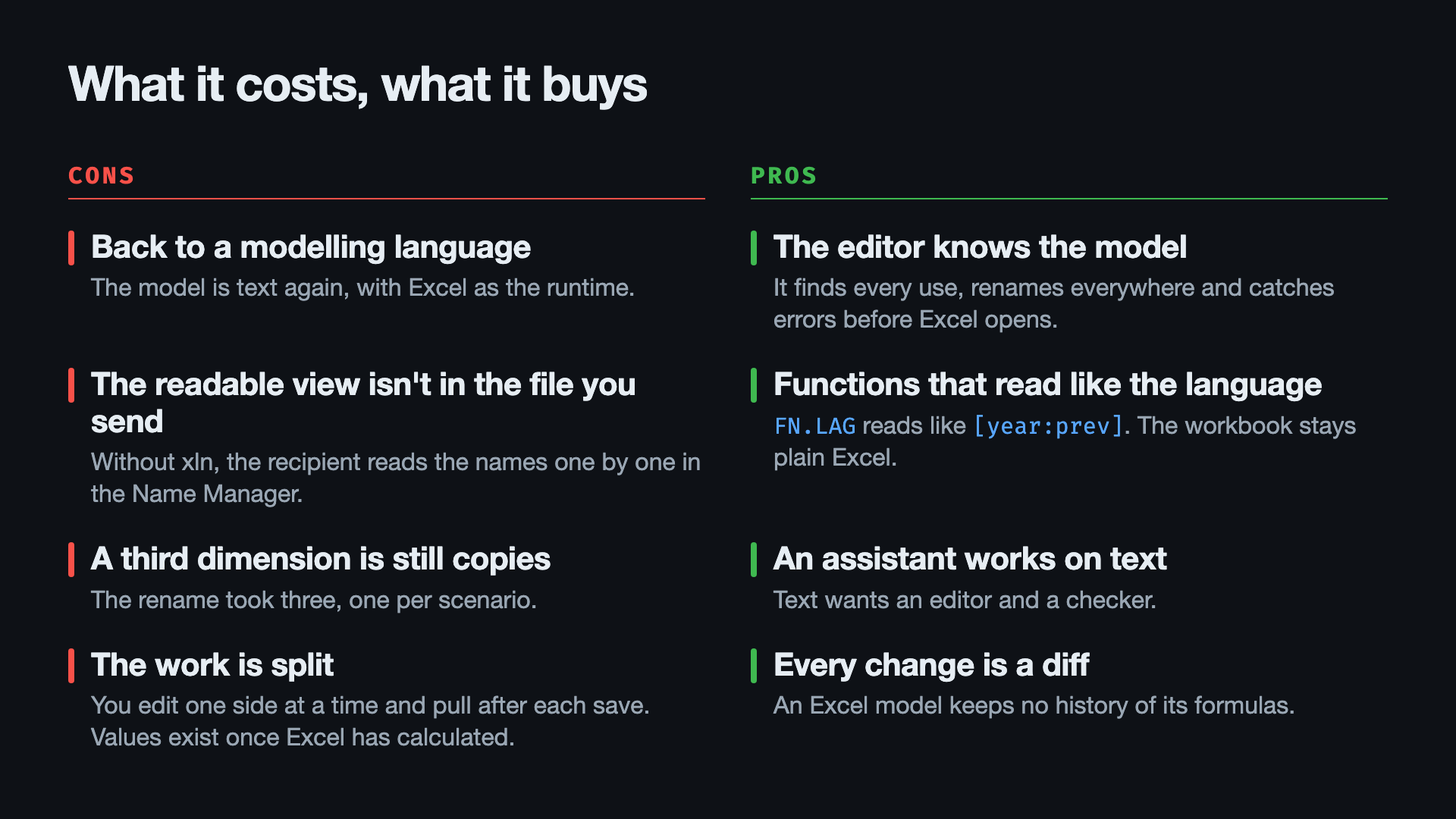
| What it costs | What it buys |
|---|---|
| The spreadsheet freed modellers from planning languages written as text. With xln the model is text again, and Excel is the runtime. | The editor knows the model. It finds references into the workbook’s cells (section 5), renames everywhere (section 8), and catches errors before Excel opens (section 10). |
| The readable view is not in the file you send. Without xln, the recipient reads the names through the Name Manager’s one-line box (section 4). | Functions read closer to Impromptu’s language. FN.LAG reads like [year:prev] (section 6), and the library takes it to the next workbook (section 9). The workbook stays plain Excel, with no add-in and no macros. |
The third dimension is still copies. The rename took three (section 8), and a running balance still needs a LAMBDA that walks the years (section 6). |
An assistant works on text, and text can have an editor and a checker. Fifteen replacements, fifteen look-alikes left alone, checked and planned before the workbook changed (section 12). |
The work is split. Edit on one side at a time and pull after every Excel save. A cell xln writes has no value until Excel has calculated and saved the file, and the Check sheet needs Excel. |
Every change is a diff (section 12). An Excel model keeps no history of its formulas. |
The first cost and the third gain belong together. The text format brings back the work of a modelling language, and it is the format an assistant works in.
14. What changes in the workflow
The Python generator made the first workbook. It stays the scaffold: it creates a model’s first workbook, and creates it again when the structure changes, with a new scenario or a new sheet. After that, the formulas are edited in the xln project and the look is edited in Excel, one side at a time. Each side has one job:
- the generator is authoritative for the structure it creates;
- the xln project is authoritative for the formulas and the functions;
- the acceptance check against Impromptu, run in Excel, is authoritative for the values.
A build of xln writes into an existing workbook. It does not create one, and it adds no row and no sheet.
The names of the workbook, made readable, carry what Impromptu’s datasets carry: one list of formulas per sheet, written over line items. The third axis is still copies, and the rename showed it.
Open questions
Two questions about assistants that work inside Excel are open. I do not know the answers:
- Can an assistant inside Excel, such as Microsoft 365 Copilot or Claude for Microsoft 365, build a workbook structured by dimensions like this one, with named rows, spilled formulas and scenario copies? Can it convert a cell-by-cell workbook into one?
- Is a workbook structured this way easier for an assistant to read and change than a cell-by-cell one?
15. Installing xln
- Desktop VS Code, on macOS or Windows: in the Extensions view, search for xln and install xln — Excel names as code, from the VS Code Marketplace or from Open VSX. Then open the folder that holds the workbook, right-click the workbook and choose Pull workbook.
- vscode.dev, in Edge or Chrome, when nothing can be installed: the same extension, from the same Extensions view, on the same folder. The browser cannot see whether Excel has the file open, so a build there writes a new file,
<book>.xln.xlsx, beside the workbook and never over it. - The user guide walks through the loop on a small income statement. The source is at github.com/lerzegov/xln, under the MIT licence.
xln was designed on the results of Microsoft’s Advanced Formula Environment (AFE), now part of the Excel Labs add-in: its module syntax, its doc comments, and the requests its users filed. I would have liked to build on AFE directly, but my university’s Office installation does not allow add-ins such as Excel Labs, so xln works on the file instead. It reads the same module syntax, and it respects AFE’s own copy of the modules where a workbook carries one. The page for AFE users goes through their requests one by one.
16. Measurements
This section collects the numbers the rest of the post refers to. A reader who does not need them can skip to the glossary. They were measured on copies of the workbook prepared for the video, with xln 0.1.1 to 0.1.3 and Excel 16.115 for Mac (Beta channel).
The workbook
- The copy has 539 defined names: 22 functions in the modules
FNandIN, and 517 other names. That is the count the last post reports for the workbook as shipped. The leftovers of the first video’s shoot (a copied block, a sheet and two names) were removed in Excel before these measurements. - The workbook has 12 sheets. A pull writes 11 sheet files and 2 module files:
Ratesholds a Table and no formula or name of its own, and has no file. - Excel had rewritten the spelling of five
LAMBDAparameter lists and of one constant (1E-14as0.00000000000001) when it saved the workbook. xln compares definitions after normalising whitespace and the spelling of numbers, so a build does not see these as changes and never writes them back.
The pair and the look-alikes
- The pair
FN.SEEDROW(0, FN.PREV(row))occurs 18 times in the workbook as built: 15 onSCF recursiveand 3 onSCF. The 3 onSCFwere rewritten in native functions for section 6, which leaves 15. - The 15 pairs sit in 12 cells: the
FixedPoint_…row of each scenario holds two, namedexcandodinside theLETofFN.FIXPOINT. - The 15 look-alikes, calls of
FN.SEEDROWwhose second argument holdsFN.PREVinside a longer expression:SCF!NetCashPositionBCI_…(3, of the formFN.PREV(x) + y),NCFViaCashDecomposition_…onSCFandSCF recursive(6), andBS!CapitalExpenditures_…andBS!FixedAssetRoll_…(6). - Both counts come from a parser that matches brackets, not from a text search.
FN.LAG(seed, row)andFN.SEEDROW(seed, FN.PREV(row))give the same output on a row of two or more columns, which every row of this workbook is.
The builds
- Section 7: the plan creates
FN.LAGand sets the formulas ofSCF!C13,C48andC83.xln checkreports nothing. - Section 8: the first rename changes 1 name and 1 cell formula. After its build, C11 gives 2 warnings (
IS!EBITDA_base,Check!IS_base). After the other two renames are built, C11 gives 0, and C15 gives 3 info findings, the labelsIS!B9,IS!B28andIS!B47. - Section 10: on the damaged save,
xln checkgives 6 errors, all C4, the sixSalesCOGS!…_payoutnames listed there. - Section 12: 15 replacements in 1 file (
names/sheets/SCF recursive.xln, 15 lines). The plan sets 12 formulas, eachset formula of SCF recursive!…, and leaves 540 names and 699 cell statements unchanged. On the copy used for the video it had one more line,update FN.LAG (provenance), which rewrites the tag xln keeps in the function’s comment, not its formula; that copy had been saved in Excel afterFN.LAGwas built.xln check: 0 errors, 0 warnings. The 15 look-alikes are unchanged.
The values
- The
Checksheet compares the workbook with Impromptu (the last post’s acceptance). After the build of section 7, after the renames of section 8, and after the build of section 12, it reads PASS, with a largest difference of 5.820766e-11 and fixed-point iterations of 9, 9 and 12 for the three scenarios. After all 18 pairs were replaced byFN.LAG, the result is the same. - A cell that xln writes carries no value Excel calculated until Excel opens and saves the file. Before the copies were frozen for the video, each was opened and saved in Excel.
xln verify, which compares every value with an earlier copy saved by Excel, then reported 12,078 cells on 12 sheets, 0 changed.
Where the scripts are
The acceptance check is excel_check.py, which opens a copy of the workbook in Excel and compares it with values read from the Impromptu model. It is in excel-models/_shared/build/ of my own repository, which is not public. xln and its documentation are public, at the link in section 15.
Glossary
Defined names, scope, Tables and the build script are explained in the glossary of the last post. The entries below are the terms this post adds.
Pull
xln reads the workbook and writes its names and cell formulas as text files in a folder beside it, <book>.xln/. Every pull writes the files again from the workbook; a pull refuses to run over source edits that are not built yet.
Build
xln writes the edits in the text files back into the workbook. A dialog, or xln build --dry-run in a terminal, lists every change first: the build plan. A desktop build keeps the previous file as <book>.backup.xlsx and reads the written file back.
Module
A family of names with a common prefix, such as FN.LAG and FN.SEEDROW, kept in one file, names/FN.xln. Module names are visible from every sheet.
Spill and #
A formula that returns several values fills, or spills into, the cells next to it. In a .xln file, @C9# says that the name covers the whole spill; @C9 alone would name the first cell only.
Copy drift
Check C11. Names that differ only by a scenario suffix, such as EBITDA_base and EBITDA_payout, are expected to have the same formula apart from that suffix. When they do not, the check warns.
Label notice
After a rename, the list of cells whose text still shows the old name, with the Find & Replace that fixes them in Excel. xln does not write cell values.
Library
A folder of .lambda files, one function each, shared by several workbooks. Its status compares each copy in a workbook with the library’s version.